How to Watch FIFA World Cup 2026 on Philips Smart TV

Watch world cup 2026 philips smart tv coverage by identifying whether your Philips set runs Google TV or Roku TV before you install anything. Philips support in the United States provides separate setup articles for both platforms, which means the right app path depends on the model in your room. U.S. viewers should still build around FOX routes in English and Peacock or Telemundo routes in Spanish.
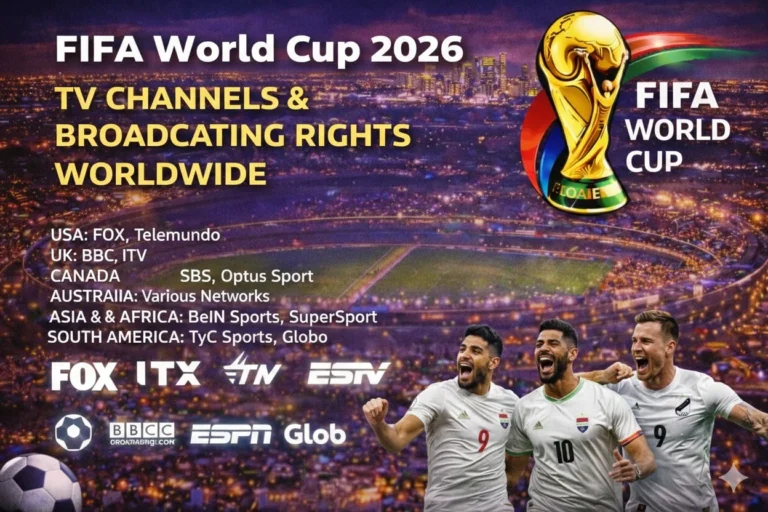
Start with FIFA World Cup broadcasting rights if you are outside the United States because rights decide the stream, not the TV brand. Then compare kickoff windows in the FIFA World Cup 2026 TV schedule and test the same Philips screen you plan to use for live matches. Philips Google TV and Philips Roku TV both work for legal viewing, but they use different menus, stores, and app search flows.
| Philips Smart TV Viewing Need | Best Legal Route |
|---|---|
| English live matches in the United States | FOX One, FOX, FS1, or a live TV service with the right channels |
| Spanish live matches in the United States | Peacock, Telemundo routes, and live TV packages with Telemundo or Universo |
| Philips Google TV | Install the broadcaster app through Apps and Google Play |
| Philips Roku TV | Add the channel through the Roku app path |
| Outside the United States | Use the official broadcaster for your market and verify app support first |
Can You Watch FIFA World Cup 2026 on Philips Smart TV?
You can watch FIFA World Cup 2026 on Philips Smart TV, but the exact setup depends on whether your model runs Google TV or Roku TV. Philips support has one article for adding applications on Philips Google TV and another for adding channels on Philips Roku TV, which confirms that the platform changes the install path. That matters because a Google TV owner and a Roku TV owner do not follow the same steps even though both televisions say Philips on the frame.

The rights route stays simpler than the TV route. FOX says all 104 World Cup matches stream on FOX One and FOXSports.com in English in the United States, while Peacock lists La Copa Mundial de la FIFA 2026 in its live sports lineup for Spanish-language streaming. Once you confirm whether your Philips set is Google TV or Roku TV, the correct app path becomes much clearer.
Why Does the Philips Platform Matter Before Matchday?
Philips smart TVs in the U.S. do not all run the same operating system. Philips Google TV uses a Google account, the Apps tab, and Google Play, while Philips Roku TV uses Roku’s channel and setup flow. Philips support treats them as separate families because the app menus, remote prompts, and troubleshooting paths are different.
That split matters most when you prepare for live sports. A Google TV model can look and behave like a Sony or TCL Google TV setup, while a Roku TV model behaves more like a dedicated Roku device. So the smartest first step is not downloading an app. It is checking the TV platform in your settings or home-screen layout.
Which Philips Smart TV Apps Should You Check for World Cup 2026?
Start with FOX One for English-language coverage in the United States. FOX says every World Cup 2026 match streams there, and its supported-device help includes Roku plus Android TV and Google TV, which covers the main Philips smart TV families in the U.S. That makes FOX One the cleanest direct route for many Philips owners.
Check Peacock next for Spanish-language coverage because Peacock supports Google TV smart TVs and also remains available through compatible streaming platforms many Philips owners already use. Fubo is also useful because its supported-device guide lists TVs with Android TV built in and remains a strong sports-first fallback. After that, YouTube TV, Sling TV, Hulu + Live TV, and DIRECTV Stream remain useful backup routes when their packages carry the exact channel you need.
| App or Service | Why It Matters on Philips Smart TV | Type |
|---|---|---|
| FOX One World Cup streaming | Primary English route because FOX says every match streams live and on demand there | Direct broadcaster app |
| Peacock World Cup streaming | Primary Spanish route because Peacock carries Telemundo World Cup coverage | Direct broadcaster app |
| FuboTV World Cup streaming | Strong sports-first fallback on Android TV and Google TV ecosystems | Live TV streaming |
| YouTube TV World Cup streaming | Useful backup on Philips Google TV when the package carries FOX channels | Live TV streaming |
| Sling TV World Cup streaming | Lower-cost fallback for selected channel access | Live TV streaming |
| Hulu + Live TV World Cup streaming | Live TV bundle route for households already using Hulu | Live TV streaming |
| DIRECTV Stream World Cup streaming | Full live TV fallback for users who prefer a cable-style app package | Live TV streaming |
How Do You Add World Cup Apps on Philips Google TV?
The official Philips Google TV app guide says you need an internet connection and a Google account to add apps beyond the pre-installed ones. Philips then tells users to go to the Apps section on the home page, search for the app, open the result, and select Install. Google’s own Google TV app-install help follows the same pattern through the Apps tab and search flow.
This is the easiest route for Philips owners using Google TV because it mirrors what people already know from other Google-powered televisions. If the app does not appear, the problem is often account setup, region, or app availability on that platform rather than the World Cup rights themselves. Update the TV first, then search again before you move to a backup device.
| Step | Philips Google TV Action |
|---|---|
| 1 | Connect the TV to the internet and sign in to a Google account |
| 2 | Open Home and move to the Apps tab |
| 3 | Search for FOX One, Peacock, or your live TV service |
| 4 | Open the app page and select Install |
| 5 | Sign in with the subscription or TV provider that carries the match |
| 6 | Test a live or replay stream before kickoff |
How Do You Add World Cup Apps on Philips Roku TV?
The official Philips Roku TV app guide sends users to Roku’s support flow for adding channels and apps. Philips also describes Roku TV as a simple smart TV with a straightforward home screen and automatic software updates on its Roku TV product page. That makes Roku a practical route for viewers who want a cleaner, less cluttered home-screen experience for live sports.
Roku setup still needs early testing before the tournament. Philips points owners toward the Roku setup help flow in its Philips Roku TV setup article, which is a reminder that channel setup, account sign-in, and stream testing should happen before the first match you care about. If your Philips TV is Roku-based, treat it like a Roku device rather than like a Google TV.
| Step | Philips Roku TV Action |
|---|---|
| 1 | Open the Roku home screen and confirm the TV is fully updated |
| 2 | Use Roku channel search or the Roku add-channel flow |
| 3 | Add the broadcaster app or live TV service you plan to use |
| 4 | Sign in with the subscription or TV provider that carries the match |
| 5 | Start a replay or live stream to confirm playback works |
| 6 | Keep one backup app or device route ready before kickoff |
Can You Watch World Cup 2026 Free on Philips Smart TV?
A Philips Smart TV does not make World Cup 2026 free on its own. You still need the legal broadcaster in your country, and many matches require a paid app, a cable login, or a live TV package. Free access only appears when the licensed broadcaster in your market offers open streams or free-to-air coverage.
If you are in the United States, the clearest answer remains FOX One for English and Peacock for Spanish. Outside the United States, the correct route changes by country, so checking the broadcaster list first saves time and avoids building the wrong app setup. The television helps you run the app, but rights still decide the match feed.
Philips Smart TV Setup for FOX One, Peacock, and Fubo
Start with the account layer before you touch picture settings. Sign in to the service, confirm the plan or provider access, and test a live stream or replay. Many playback problems come from the wrong subscription tier, a stale login, or provider access that does not include the match channel.
FOX One is the first English route to test because FOX says every World Cup match streams there and its supported-device help covers Roku plus Google TV and Android TV. Peacock is the first Spanish route to test because Peacock supports Google TV devices in the United States. Fubo becomes an extra fallback for Philips Google TV owners because it remains strong on Android TV and Google TV ecosystems when the package includes the right channels.
| Setup Area | What to Check on Philips Smart TV |
|---|---|
| TV platform | Confirm whether the TV runs Google TV or Roku TV before you install anything |
| Account access | Verify the login, provider link, or subscription level before kickoff |
| Picture mode | Use your preferred sports mode for motion and grass detail |
| Audio path | Check TV speakers, soundbar, or Bluetooth audio before the first whistle |
| Language route | Choose early between FOX routes and Peacock or Telemundo routes |
How Much Internet Stability Does Philips Smart TV Need?
Stable internet matters more than a headline speed test. A crowded Wi-Fi network, poor router placement, and background downloads can ruin a live football stream on either Philips platform. These issues become more obvious during major World Cup windows when several devices in the same house are drawing bandwidth at once.
Use wired ethernet if the TV sits near the router. If you rely on Wi-Fi, move the television to the strongest band and cut unnecessary traffic before kickoff. Test a real live stream in advance because on-demand playback can hide buffering and sync problems that only appear under live sports pressure.
What Should You Do If a World Cup App Fails on Philips Smart TV?
Start with the simplest fix first. Sign out, restart the app, and reconnect the correct account or TV provider. Many matchday issues come from stale sessions, expired passwords, or the wrong subscription package rather than from a bad television.
If the app is missing, freezing, or refusing to play live video, compare the fixture in the World Cup 2026 match schedule and keep World Cup live scores open while you change routes. If your Philips platform itself becomes the issue, a fallback route such as Roku World Cup viewing, Chromecast World Cup viewing, or the similar Sony BRAVIA TV World Cup viewing Google TV path can save the match window.
| Problem | Fix |
|---|---|
| App missing | Check whether the TV is Google TV or Roku TV, then use the correct store or channel path |
| Login failed | Restart the app and reconnect the correct provider or subscription plan |
| Buffering | Improve Wi-Fi or use ethernet and reduce other network traffic |
| App freezing | Update the TV, reopen the service, and switch to a backup route if needed |
| Wrong feed or language | Switch between FOX routes and Peacock or Telemundo routes |
FAQs
Can I watch FIFA World Cup 2026 on Philips Smart TV?
Yes. You can watch FIFA World Cup 2026 on Philips Smart TV, but the setup depends on whether your model runs Google TV or Roku TV.
Which app should Philips users check first for World Cup 2026 in English?
Philips users in the United States should check FOX One first because FOX says all 104 matches stream there.
Which app should Philips users check first for World Cup 2026 in Spanish?
Peacock should be checked first for Spanish-language viewing in the United States because it carries Telemundo World Cup coverage.
How do I add apps on a Philips Google TV?
Philips says Google TV owners should connect the TV to the internet, sign in to a Google account, open the Apps tab, search for the app, and select Install.
How do I add apps on a Philips Roku TV?
Philips sends Roku TV owners to Roku’s add-channel and setup help flow, so you should treat the TV like a Roku device when adding apps.
What if the World Cup app is missing on my Philips Smart TV?
Check the exact platform first, update the TV software, search the correct app path, and use a backup device route if the app is unavailable on your model.
Conclusion
Philips Smart TV can be a strong World Cup 2026 screen when you start with the correct platform check instead of assuming every Philips TV works the same way. Confirm whether your set runs Google TV or Roku TV, then match that system to FOX One, Peacock, Fubo, or the right live TV app. Test the stream early so your setup is already proven before kickoff.
Read Also: TCL Smart TV World Cup viewing